Generating Documentation
The VS Code extension for IPL includes a built-in documentation creation system, which can be accessed via a dedicated VSCode command. Simply running the command Ipl:Generate Documentation on an IPL file will produce a document in HTML format containing detailed information on the various IPL entities defined in the model, including messages, enumeration types, and repeating groups. The documentation generation process is fully automatic by default, but it can optionally be customized via user-defined Markdown files specifying the desided structure and format of the generated documents.
The following sections explain how to generate documentation via the VS Code extension for IPL, and how to use Markdown files to customize the generation process.
Visual Studio Code extension
To access the document generation functionality from VS Code, please make sure to
- install the Imandra CLI
- install the latest IPL VS Code Plugin
- be registered with an Imandra account
Documentation can be generated by opening an IPL file and invoking the VS Code command Ipl:Generate Documentation. Upon successfull completion, a documentation page in HTML format will be saved in the same location and with the same file name of the source IPL file. Note that this process will not succeed if
- the IPL model contains errors, or
- there is no internet connection, or
- the user is not authenticated into their Imandra account
Authentication
The documentation generation command is only available to authenticated users. The IPL extension will guide the user through authentication if they have not logged in yet; however, a valid Imandra account and a working installation of the Imandra CLI are prerequisites.
If the VS Code command Ipl:Generate Documentation is invoked on an unauthenticated machine, the extension will instruct the user to log in:
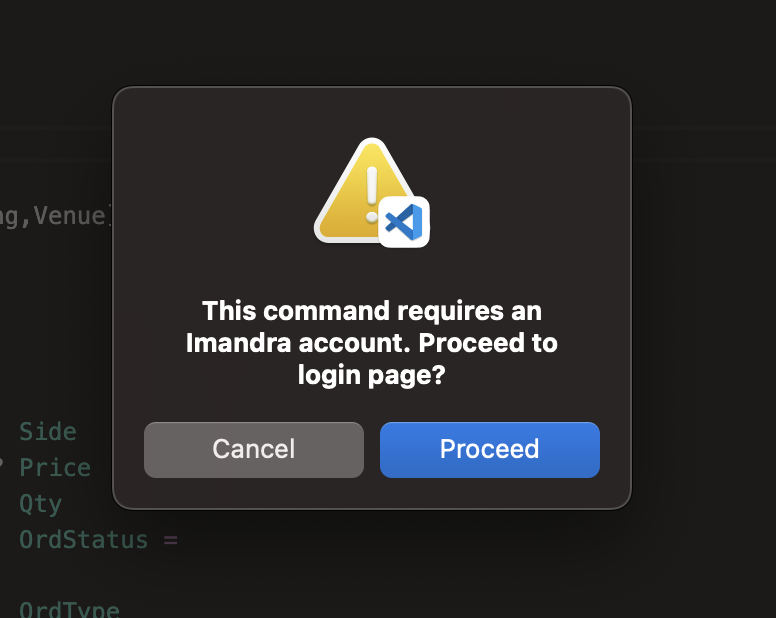
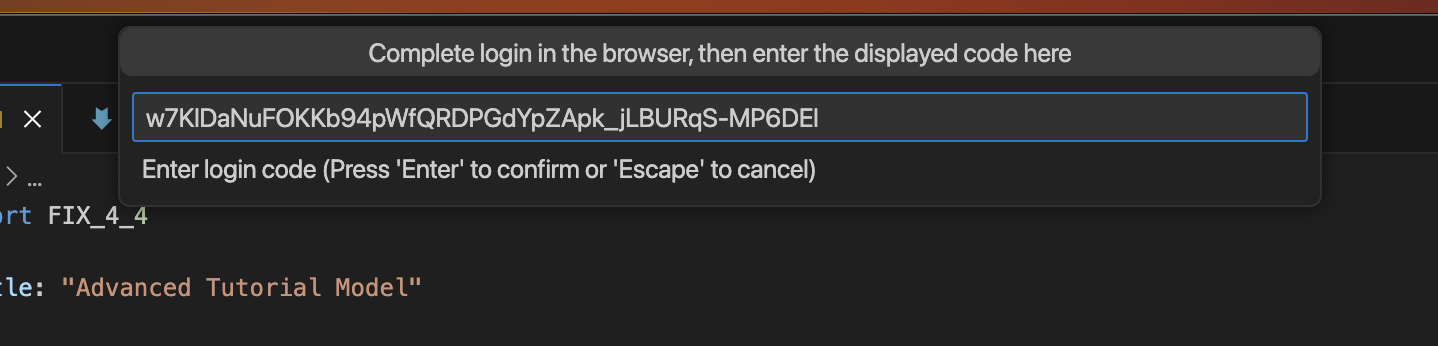
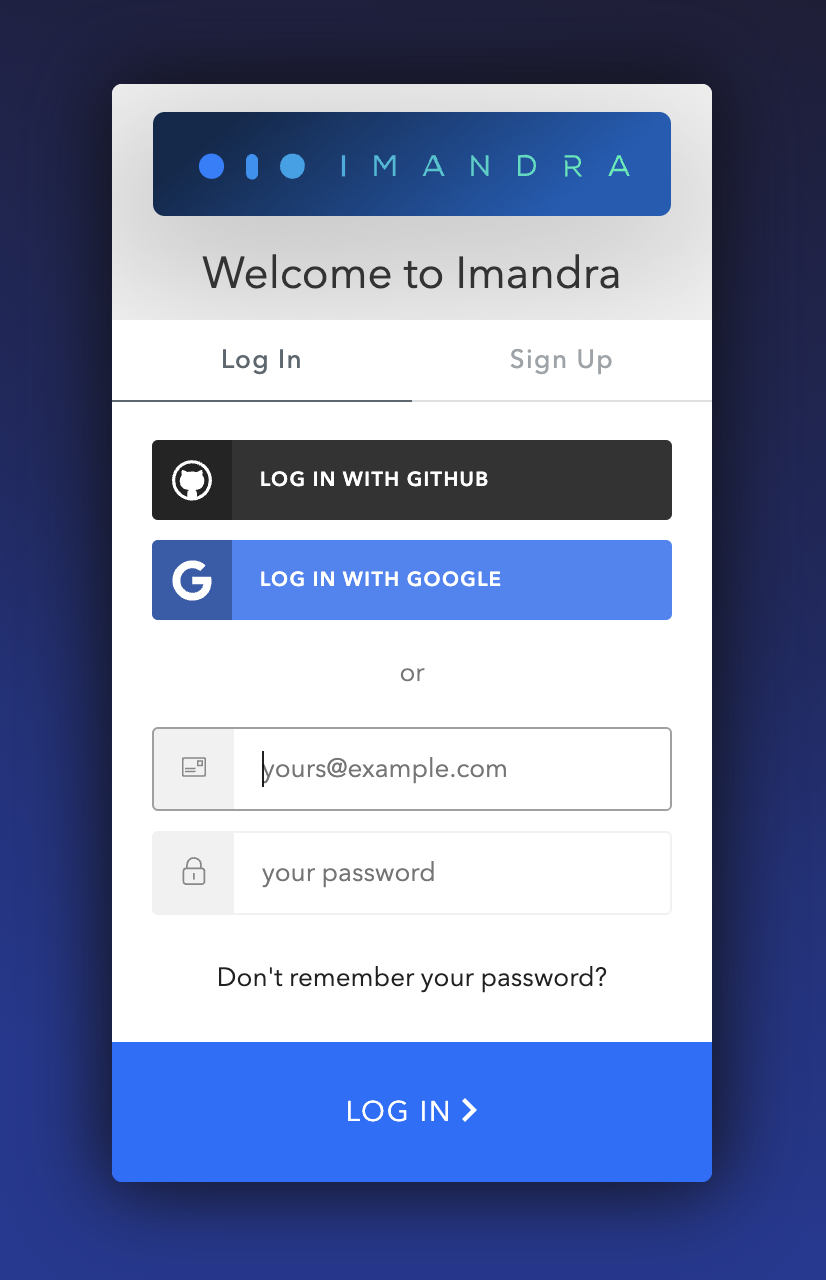
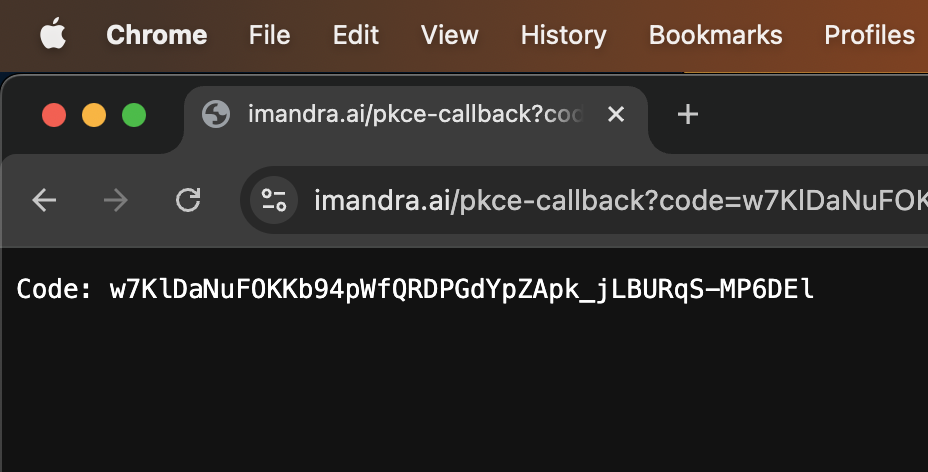
Upon clicking "Proceed", a login page will open in a new browser window. After successfully logging in, the browser page will show an authentication code, which must be copied and pasted into the following text box back in VS Code.
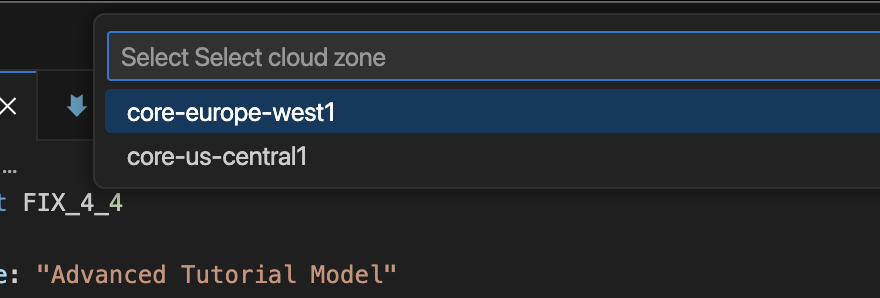
After entering the authentication code, the extension will ask to select the computing zone.
After this last step, the user will be authenticated and the IPL extension will proceed to generate documentation.
Formatting documentation with Markdown
By default, the IPL extension formats the output HTML file automatically, following a standard document structure that lists all messages, fields, enumeration types, and repeating groups defined in the IPL model. Documentation generated using this standard format is highly detailed and thus likely to be sufficient for most use cases; however, it is possible to instruct the extension to use a custom format instead.
The IPL extension supports full customization of the documentation generation process via Markdown. This feature allows the user to provide a Markdown file with their own content and formatting, which is used to render the final HTML documentation file. The extension supports a custom version of Markdown that can insert in-document references to IPL entities (like messages and enumeration types) and automatically generate richly formatted documentation for those entities.
To use Markdown formatting to drive documentation generation, add a Markdown file in the same location as the IPL model. The Markdown file should have the same file name as the IPL file, but with a .md extension.
When invoking Ipl:Generate Documentation, the extension looks for a matching Markdown file in the same location as the target IPL file and, if present, uses it to render documentation.
See Markdown formatting for details on the Markdown syntax supported by the extension.
Markdown formatting
The Markdown format supported by Ipl:Generate Documentation is a subset of v0.30 of the CommonMark standard, augmented with special code blocks that can be used to insert references to various entities from the IPL model (such as messages and enumeration types) and automatically generate richly formatted documentation for them.
To make template editing easier, the VS Code extension provides an additional command Ipl:Generate Markdown template that automatically creates a Markdown file complete with all templating constructs needed to generate the IPL model's default HTML documentation, exactly as with Ipl:Generate Documentation without templates.
Supported Markdown constructs
Headings are formatted as lines of text preceded by number signs (#). The number of signs denotes the heading level:
# Title
## Subtitle
### Subsubtitle
Paragraphs are written as normal blocks of text, separated by one or more blank lines:
This is
a paragraph.

This is another paragraph.
Text can be formatted as bold, italic, or monospaced:
This is __bold__ text.
This is _italic_ text.
This is `monospaced` text.
Code blocks are formatted as paragraphs surrounded by three backticks:
```
code
block
```
Items can be organized into lists:
* Item 1
* Item 2
* Item 3
Currently, only unordered lists are supported.
Data can be organized into tables:
| Header 1  | Header 2  |
|:----------|:----------|
| Cell 1    | Cell 2    |
| Cell 3    | Cell 4    |
Labelled hyperlinks are inserted as follows:
Click [here](https://www.imandra.ai) for the homepage.Heading metadata
Section headings can be tagged with metadata describing the specific IPL entity they refer to. For example:
## ExecutionReport (8){msg=ExecutionReport}In general, heading metadata is attached with the following syntax:
## Some section title{msg=MessageName}
## Some section title{enum=EnumName}
## Some section title{rg=RepeatingGroupName}
Adding IPL metadata to section headings has two effects:
- it adds a jump-to-definition button/hyperlink next to the heading, which navigates to the source location of the referenced IPL entity;
- it allows in-text references to those headings, in the form of hyperlinks that jump back to the corresponding section.
For example:
## Execution Report messages (8){msg=ExecutionReport}

Click [here](msg=ExecutionReport) for more info on `ExecutionReport` messages.
Click [here](enum=OrdType) for more info on the `OrdType` enumeration type.
Click [here](rg=Parties) for more info on the `Parties` repeating group.
Note:
- entities mentioned in metadata must be valid IPL entities defined in the corresponding IPL model;
- within one document there should be only one heading reference per IPL entity;
- jump-to-definition links are currently supported for messages and enums.
Embedded FIX wizard queries
When formatting IPL documentation in Markdown, you can leverage Imandra FIX Wizard via embedded queries. FIX Wizard queries can be embedded as special code blocks using the fixWizard language:
```fixWizard
describe ExecutionReport messages
```
As part of rendering docs from Markdown, fixWizard blocks are replaced with formatted FIX Wizard output.
Recommended queries for embedded documentation:
- table of all fields for a message:
(Query(Describe(Msg(Msg_of_name ExecutionReport))))- list all validation statements for a message:
(Query(Validations(Msg(Msg_of_name ExecutionReport))))- textual description for a message:
(Query(Descriptions(Msg(Msg_of_name OrderCancelReject))))- table of all fields used in the spec:
(Query (Fields All))- textual description for an enum type:
(Query(Descriptions(Enum CrossType)))- list constructors for an enum type:
(Query(Describe(Enum CrossType)))Example
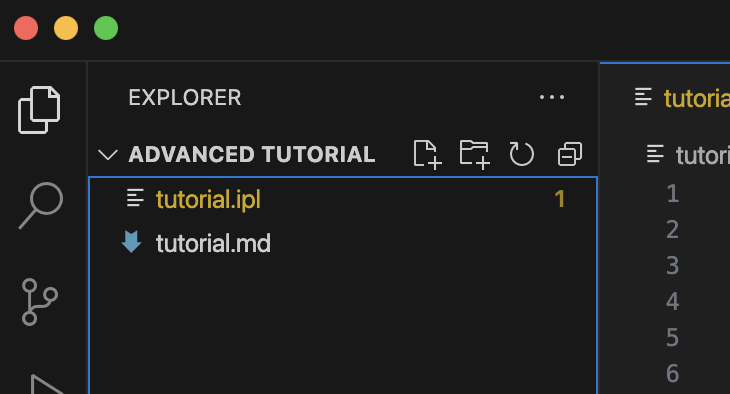
In this example we generate documentation for the IPL model from the advanced tutorial, saved as tutorial.ipl. The fastest path is to open the model in VS Code and run Ipl:Generate Documentation.
Suppose we want a custom document that mentions only ExecutionReport, ExecType, and Parties. We can create a Markdown file like:
# Custom documentation for the model 'Advanced Tutorial'

This is a stripped-down version of the 'Advanced Tutorial' model documentation,
that only contains information about [Execution Report](msg=ExecutionReport)
messages, [ExecType](enum=ExecType) enumeration types, and [Parties](rg=Parties)
repeating groups.

## Execution Report messages{msg=ExecutionReport}

These are the _fields_ of `ExecutionReport` messages:

```fixWizard
(Query(Describe(Msg(Msg_of_name ExecutionReport))))
```

These are the _validation statements_ of `ExecutionReport` messages:

```fixWizard
(Query(Validations(Msg(Msg_of_name ExecutionReport))))
```

## Execution type{enum=ExecType}

The type `ExecType` supports the following constructors:

```fixWizard
(Query(Describe(Enum ExecType)))
```

The underlying encoding is `char`. Fields of type `ExecType` are commonly used as
part of [`ExecutionReport`](msg=ExecutionReport) messages.

## Parties{rg=Parties}

The full list of fields of `Parties` repeating groups can be found below:

```fixWizard
(Query(Describe(Repeating_group Parties)))
```
After saving this as tutorial.md, return to tutorial.ipl and invoke Ipl:Generate Documentation.